WHMCS
WHMCS it self is very well known as The Complete Client Management, Billing & Support Solution. But people also know that WHMCS is very hard to manage the layout, it has it's own WHMCS template but it is very hard to customize, also WHMCS is not built to support SEO so that it is somehow not good enough.
The opposite of WHMCS weakness we have WordPress as well known as a number one opensource support SEO and super easy to customize and create content.
Therefore that the combination of both systems could be amazing right? then we developed Alaska to make it happen.
How to Install WordPress
Refer to the WordPress installation guide here
Install Alaska WordPress theme
We have given the detailed installation guide our Alaska theme above.
Installing WHMCS
Refer to the WHMCS installation guide here. If there are any problem during your installation and configuration please ask WHMCS support forum.
Install WHMCS-Bridge Plugin on Wordpress
Refer to the installation guide of WHMCS-Bridge plugin in here.
Installation Instructions for WHMCS Bridge PRO on Wordpress
This is the completed guidence from the plugin developer for both WHMCS site and WordPress site. Please follow this link.
If there are any problem during your installation and configuration please ask WHMCS-Bridge support forum.
Important notice
After completely all the installation guidences above, you need to upload and config some important things, following steps below.
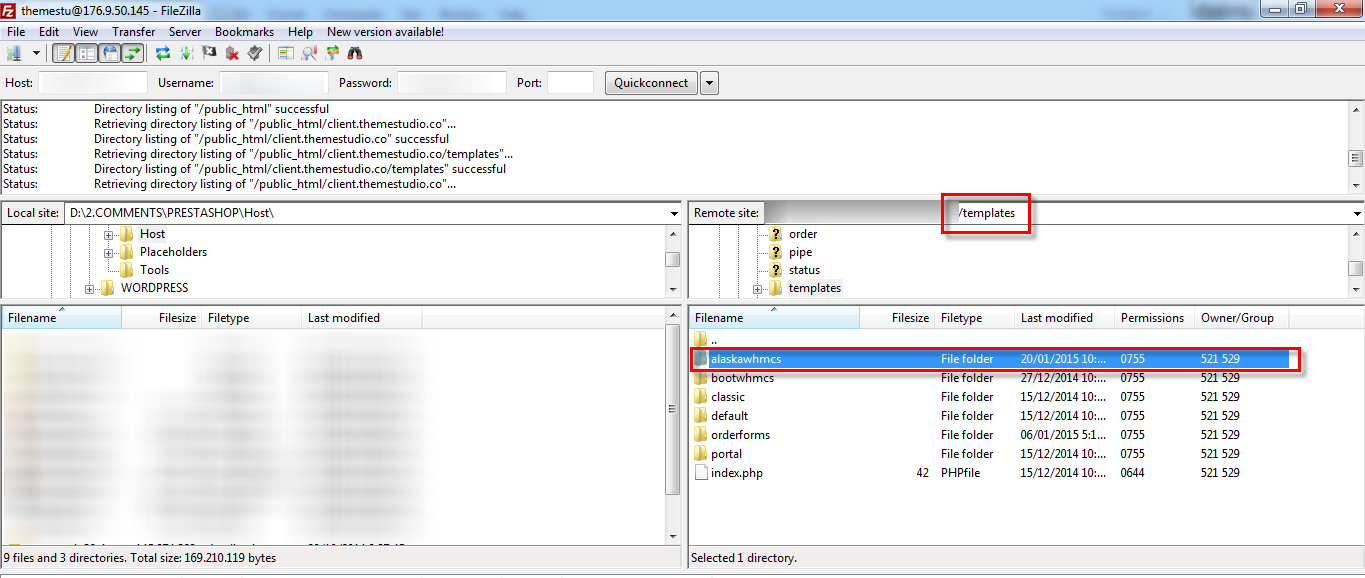
Step 1: Upload our template "alaskawhmcs" in attached zip file to WHMCS via FTP, see in the following image.
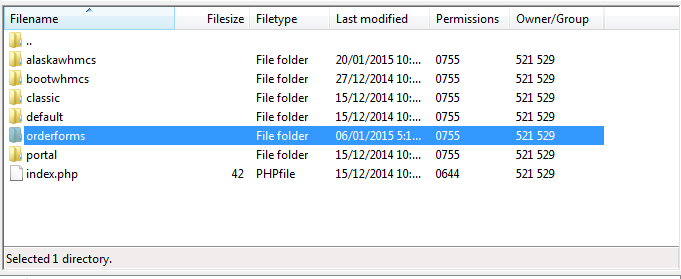
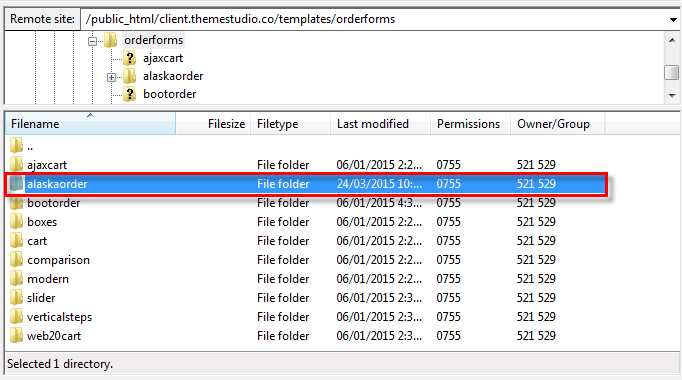
Step 2: You continuously upload template "alaskaorder" into folder " orderform/... " on WHMCS via FTP.
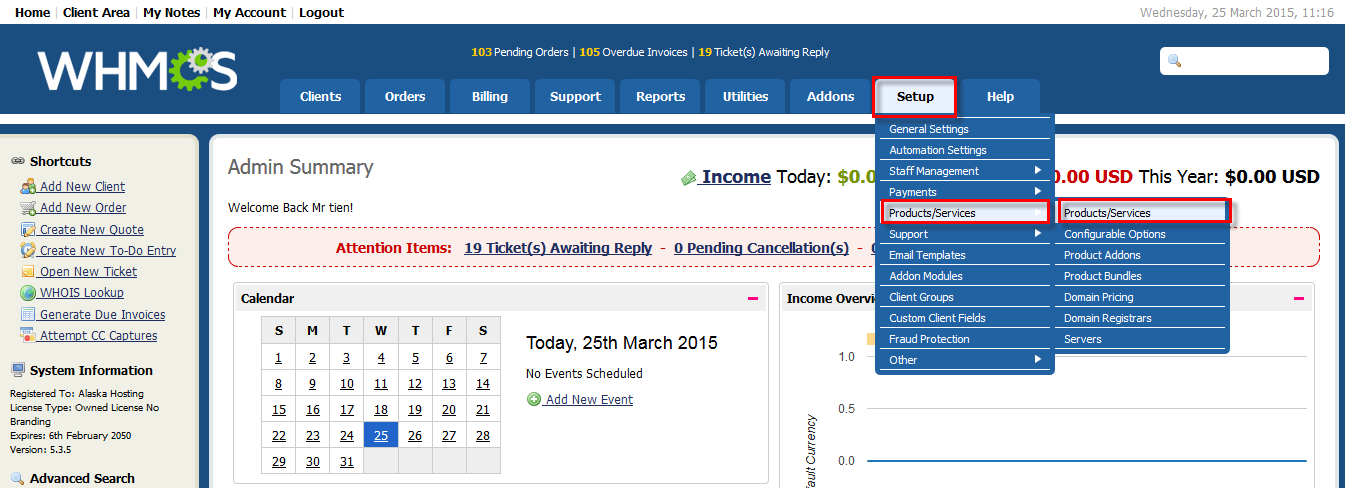
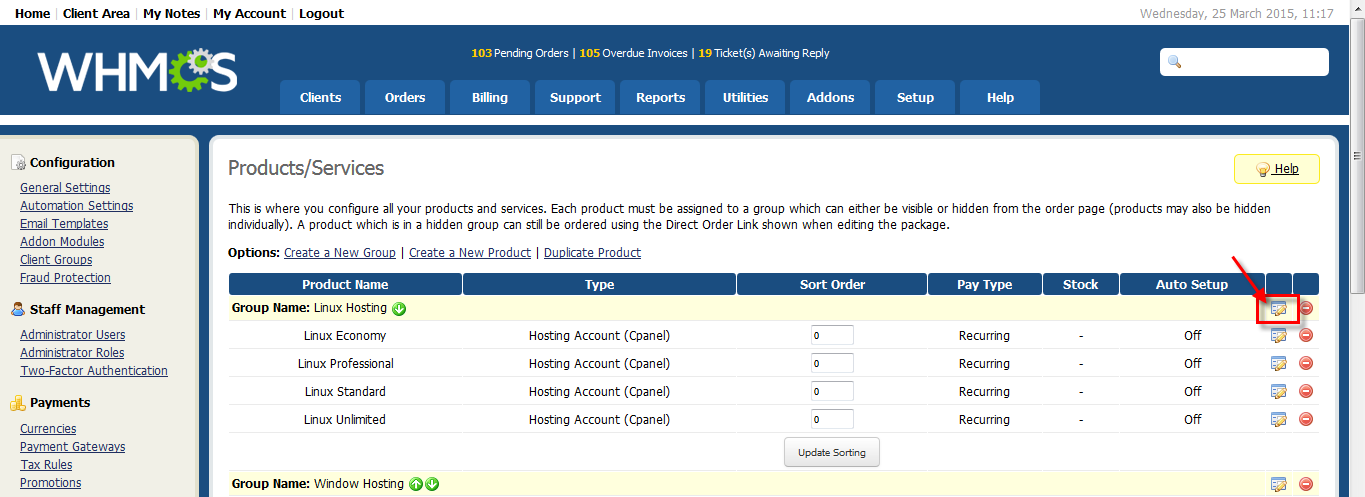
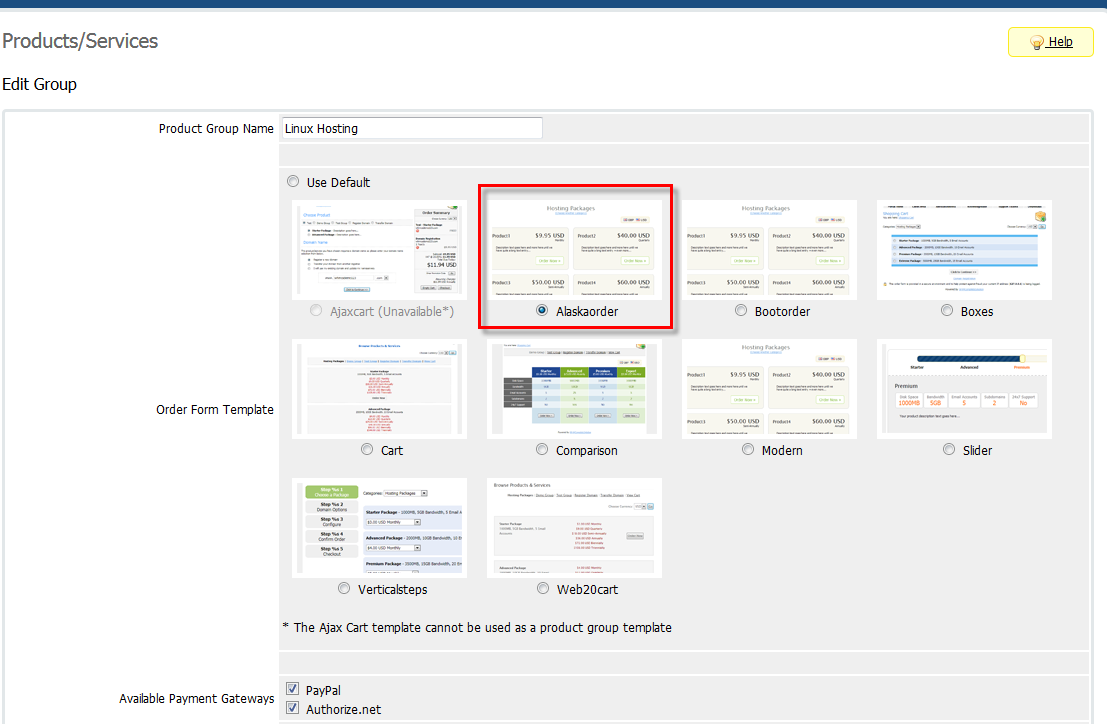
Step 3: If you would like use our orderform that just uploaded to WHMCS, go to Dashboard to active our own oderform.
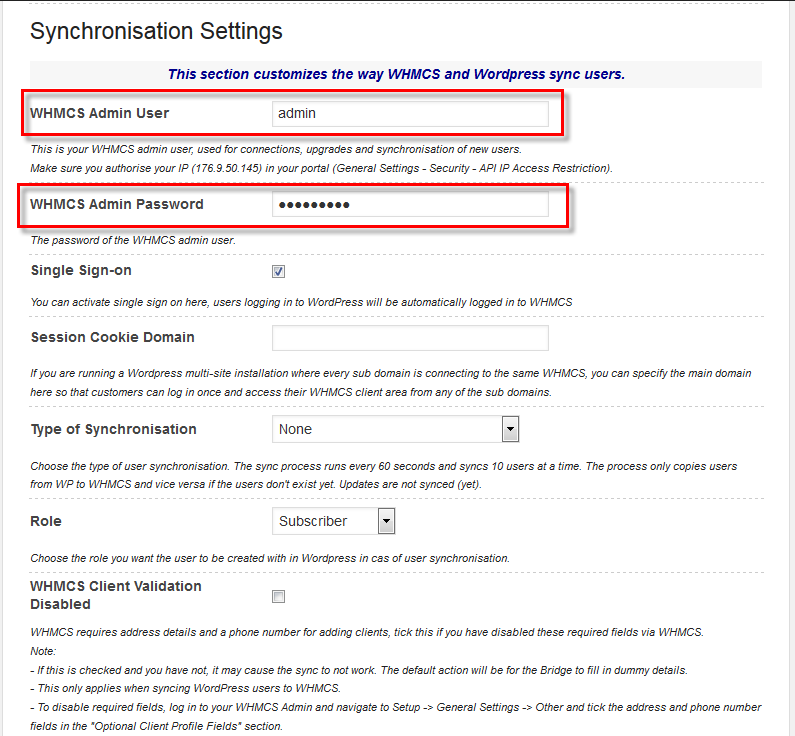
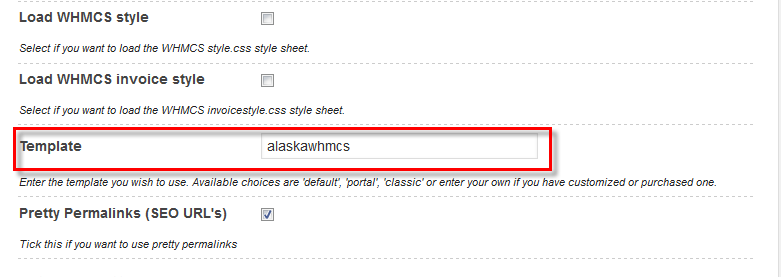
Step 4: Go to WordPress Dashboard to set some relevent informations.
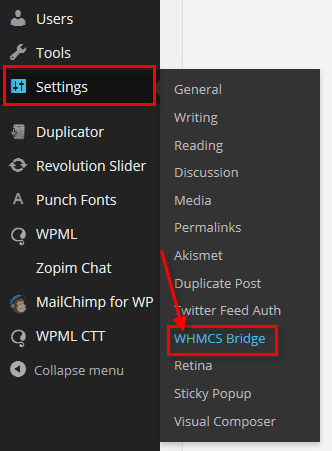
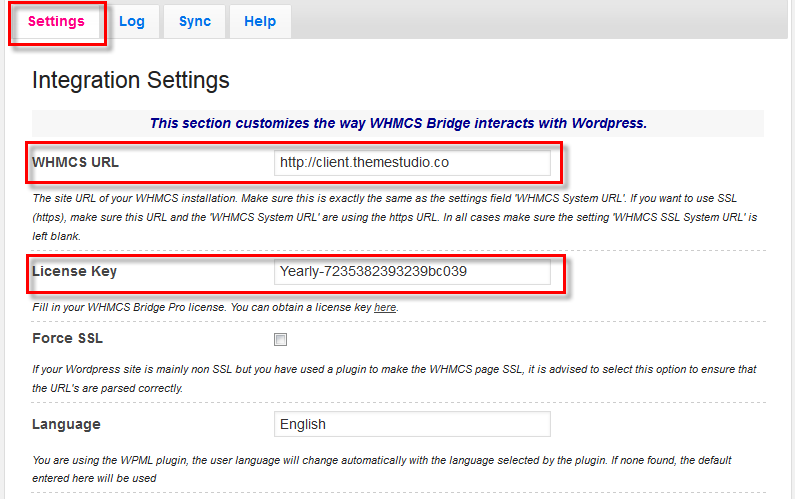
Go to Dashboard >> Settings > WHMCS Bridge >> Settings tab